




How to Verify an Electronic Signature in Ukraine: Step-by-Step Guide 2026

A counterparty sends you a signed contract, act, or invoice. Everything looks fine, but how do you know the signature is genuine and nobody edited the file after it was signed?
Most business owners have no idea that this check takes a minute, costs nothing, and runs on an official government website. Better still, you can save the result as proof - on this date the signature passed verification and the document was not changed after signing.
Below is a step-by-step guide - where to verify a signature, which files to upload, what the result means, and what to do if the signature fails verification.
What Checking an Electronic Signature Tells You
The check answers three different questions at once.
- Who signed it. The signer's last and first name, or the company name, the tax ID, and the provider that issued the certificate.
- Whether the document was changed. If any data protected by the signature is altered after signing, the integrity check fails.
- When the signature was applied. The service shows the signing time, and if there's a qualified electronic timestamp, its details too.
Under Article 18 of the Law on Electronic Identification and Electronic Trust Services, a qualified electronic signature (QES) has the same legal force as a handwritten signature and carries a presumption that it matches a handwritten signature. In practice, a document with a valid QES counts as signed on paper. But there's a limit people often forget.
The check answers "who signed it", not "whether they had the right to sign."
The check confirms that a specific person applied the signature and that the file is intact. It does not confirm that this person had the authority to sign this particular document - authority is verified separately, through the company's charter, a power of attorney, or a registry extract.
Where to Verify an Electronic Signature for Free
There are several official services, and all of them are free.
*Addresses are current as of 2026. Only verify a signature on official government sites - third-party sites may keep the documents you upload.
The CCA page and Diia run the same verification engine - a web widget built by AT "IIT". The result is identical either way, so checking the same file twice serves no purpose.
EU-standard verification, though, is a separate service. It runs on the European standards ETSI EN 319 102-1 and ETSI TS 119 172-4 and produces a detailed report. The page itself states that uploaded data is deleted automatically once the check is done.
How to Verify an Electronic Signature: Step-by-Step Guide
You don't need to install anything - it all happens in the browser.
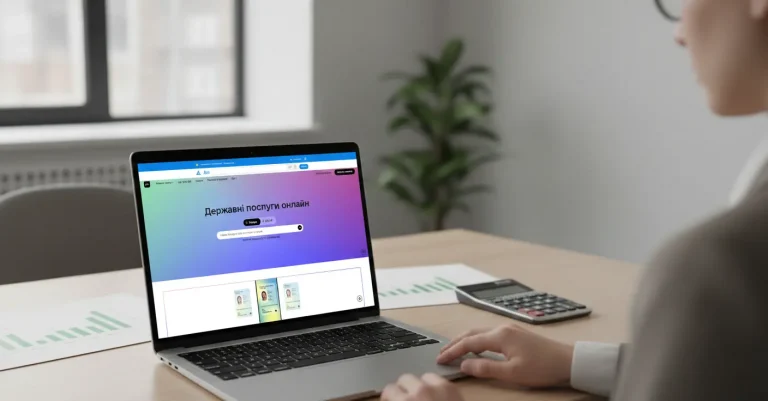
Step 1. Open the verification page. Go to czo.gov.ua/verify. This is the website of the Central Certification Authority (CCA), the government body that keeps records of every electronic signature provider in Ukraine.
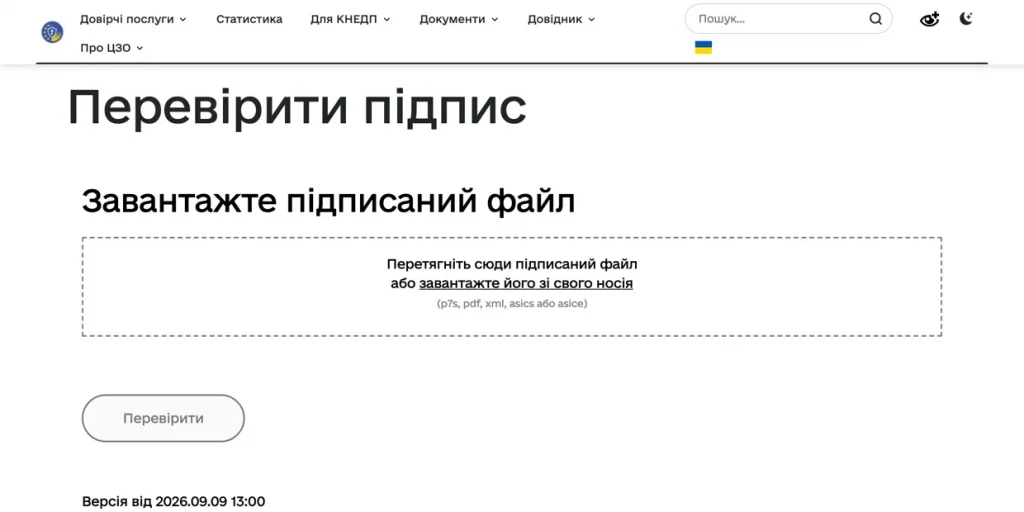
Step 2. Upload the signed file. The page has one field - "Upload the signed file." Drag the file into the dashed box or click "upload it from your device." Below the box, it lists which formats are accepted.
Once uploaded, the service shows the file name and an "Upload a different file" link, in case you picked the wrong one.
When you need a second file. If the signature is embedded in the document - a signed PDF, for example - that's all you need. But if you received two separate files, the document and its signature, the service will ask you to add the document too. This is where most people trip up.
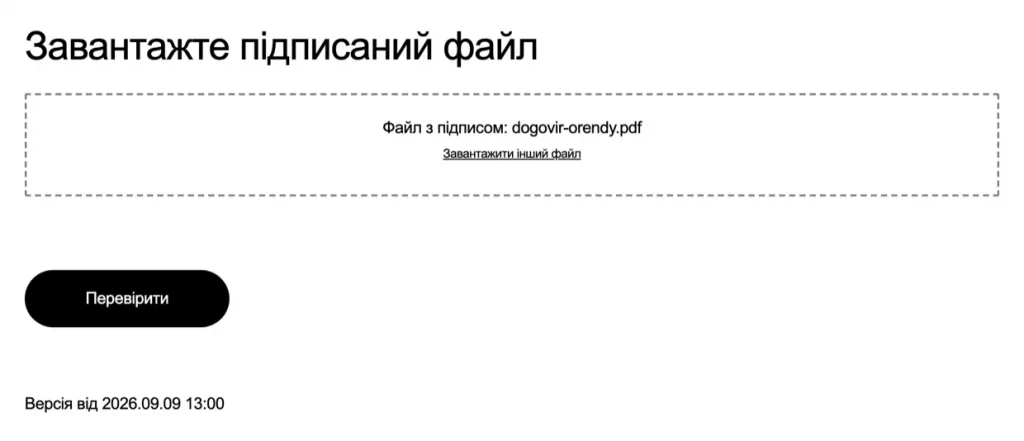
Step 3. Click "Verify." The button sits below the upload field. The check takes a few seconds, and the result appears on the same page.
Step 4. Read the result and save it. If everything checks out, the service displays "File successfully verified. All data is intact" and shows the signer's details. Below that is a "Download everything as an archive" button.
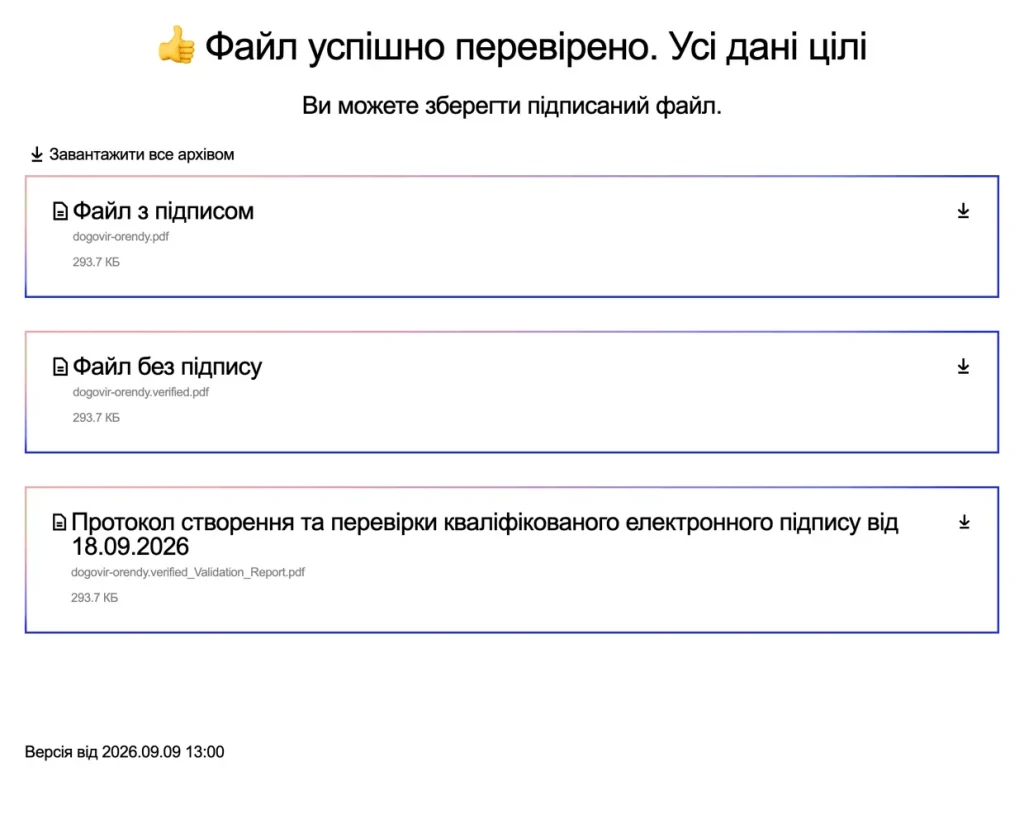
What you're actually saving. The service returns not one file but three:
- the signed document itself,
- the same document without the signature,
- a separate "Protocol for Creating and Verifying a Qualified Electronic Signature" with the verification date.
That third file is the one worth keeping on record. It documents that, as of this date, the signature passed verification. Save it in the same folder where you keep the primary documents for this transaction.
For what to keep and for how long, see the article on primary documents for sole proprietors.
Which File Formats the Verification Service Accepts
As of this writing, the service accepts the following formats. If your file is in a different one, it won't be processed.
| Format | What it usually is |
|---|---|
| p7s | the most common signature format, either a standalone file or a container together with the document |
| a document signed directly inside the file | |
| asice | a European-style container with the document and signature |
| asics | a container with added timestamp evidence |
| xml | signed reports and exchange files |
*The list of formats is based on the verification service itself, as of 2026.
If the format doesn't fit, make sure you have the original signed file, not a preview, a screenshot, or a converted copy. And if the signature was sent separately, ask your counterparty to send both the document and the signature file without changing the format.
What the Verification Result Means
A "successfully verified" message isn't the whole story. You need to check the details below it.
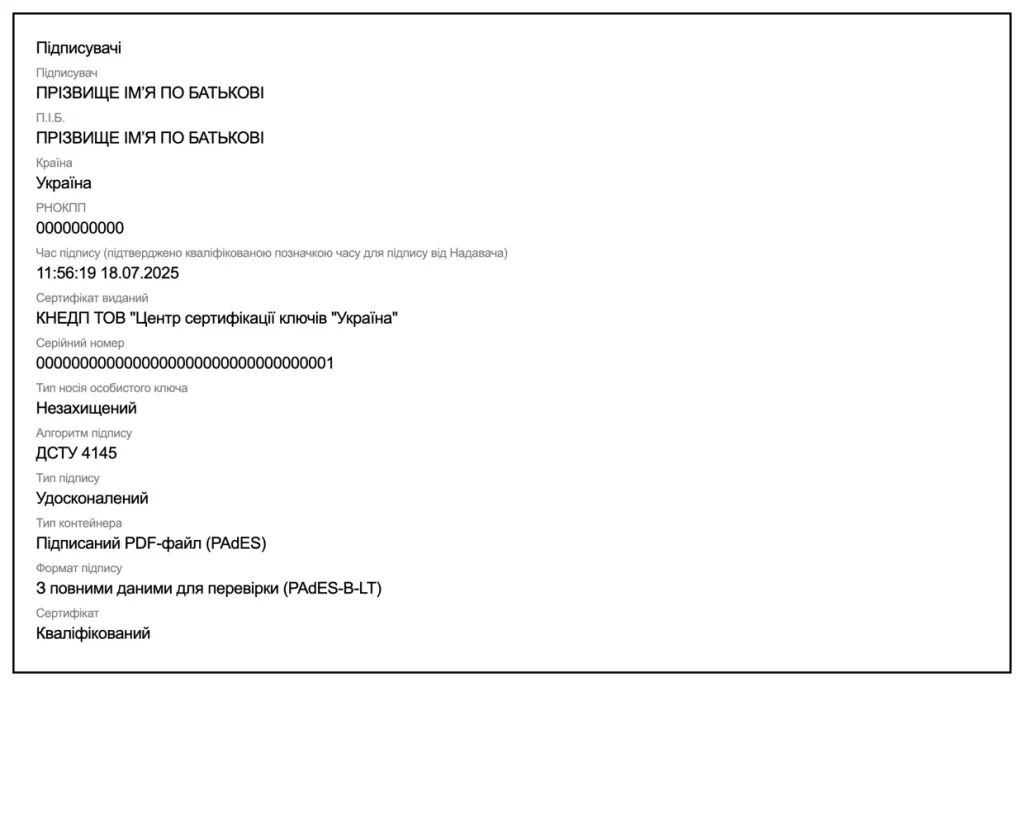
- Who signed it. Match the name or company name and tax ID against what's stated in the contract itself. Any mismatch is a reason to stop.
- Who issued the certificate. It must be a qualified trust service provider (QTSP), not just any organization.
- Signing time. Compare it with the date on the document.
- Signature type and certificate type. Two separate lines that may not match - more on this in the next section.
A separate case - the signature was applied a long time ago. Then what matters isn't just that the certificate was valid, but whether it had been revoked by the signing date. How to check that is below.
Why "Successfully Verified" Doesn't Always Mean the Signature Is Qualified
This is the trickiest part of the whole check, and the easiest place to get it wrong. The result has two separate lines - "Certificate" and "Signature type" - and they can disagree.
The law defines a QES like this - it's an advanced signature created using a qualified electronic signature tool and based on a qualified certificate. Both conditions must be met at the same time.
That's where a common situation comes from. The certificate can be qualified while the signature itself is only advanced. This happens when the signature was created without a qualified electronic signature tool - the "Private key carrier type" line then reads "Unprotected."
The law has a separate name for this - an advanced electronic signature based on a qualified certificate. It's not a "broken QES" but a distinct signature type, one that regulatory procedures have referenced alongside QES more and more often in 2025-2026.
What to do about it. A successful check doesn't mean you can use this signature instead of a QES in your specific situation. That depends on the legal requirements, the contract terms, or the particular electronic system involved. So the order is simple. Check the signature type in the result, then check what's required for this document. If you specifically need a QES, ask the counterparty to sign again.
What to Do if the Signature Fails Verification
This doesn't always mean forgery. Most of the time the cause is technical, and you can fix it in a few minutes.
| What the service shows | Most likely cause | What to do |
|---|---|---|
| doesn't see a signature in the file | you uploaded the document instead of the signature file, or the signature was sent separately | ask for the original signed file, or, if the signature is separate, ask for both files |
| data is not intact | the file was opened and re-saved after signing | ask for the original, don't edit signed files |
| certificate is invalid | the certificate had already expired by the time of signing | ask the sender to sign again with a valid certificate |
| provider or certificate doesn't meet requirements | the signature may not be the type required for this document | check the provider in the Trusted List and the requirements for this specific document |
*The table describes typical cases. The exact wording on screen may vary depending on the service version.
Golden rule - never edit a signed file or re-save it in another format. Keep the original you received separate from your working copy, and work with the copy.
Not sure about the documents from your counterparty?
Our accountants check signatures and the completeness of primary documents, and our lawyers check the signer's authority through the charter, a power of attorney, or a registry extract. That way a formality won't sink the deal during a tax audit.
How to Check Whether a Signature Provider Is Qualified
Only a qualified signature carries the presumption that it matches a handwritten one. You can check the status of a Ukrainian qualified provider in the Trusted List.
- The Trusted List - the official register of qualified providers, with information on each one: czo.gov.ua/trustedlist.
- A simpler option - the list of qualified providers in a more convenient format: czo.gov.ua/ca-registry.
If the provider isn't on the Trusted List, you can't automatically treat the signature as a qualified signature from a Ukrainian provider. In that case, check the signature type and the requirements for this specific document separately - among other things, because the law provides for recognizing foreign electronic trust services.
How to Check Whether a Certificate Has Been Revoked
A certificate can be revoked early - for example, if the key was compromised or the person left the company.
- Certificate revocation lists are published here: czo.gov.ua/crls.
- A search for a specific certificate by the owner's details: czo.gov.ua/certificates-search.
For an ordinary contract, you don't need to go this far - the general check is enough. But when a large sum or a disputed transaction is involved, spending a couple of minutes on this is worth it.
When Accountants and Sole Proprietors Actually Need This
You don't need to verify every incoming file. But there are situations where it pays off.
- A new counterparty you haven't done business with before.
- A large sum, or a transaction the Ukrainian Tax Service is likely to review later.
- A document that arrived late or is backdated.
- The contract was signed by someone other than the person who negotiated it.
Signatures on primary documents are one of the things examined during a tax audit. A document with an unverified signature can cost you deductible expenses or input VAT credit.
Common Mistakes When Verifying a Signature
1. Uploading the document instead of the signature file. If the signature was sent as a separate file, the service needs that exact file, with the document added separately.
2. Checking something other than the original. Make sure you have the exact file the counterparty sent, not a copy, preview, screenshot, or converted version of it.
3. Editing or re-saving the signed file. Depending on the format, this can alter the data protected by the signature and make verification impossible. Check the file you actually received from the counterparty.
4. Stopping at the "successful" message. What matters isn't the message, it's the signer's details. That's where you'd see that the wrong person signed the document.
5. Confusing signature verification with authority verification. These are two different things - one tells you who signed, the other tells you whether they had the right to.
FAQ: questions about verifying an electronic signature
Where can I verify an electronic signature for free?
On the website of the Central Certification Authority - https://czo.gov.ua/verify. The check is free and you don't need to register. The same service is available in Diia at ca.diia.gov.ua.
Which file formats does the verification service accept?
There are five - p7s, pdf, xml, asics, and asice. If your file is in a different format, the service won't process it - ask the counterparty to send the document together with the signature file.
Do I need to install anything on my computer?
No. The check runs in the browser. Installing separate software is needed for creating a signature, not for verifying one.
What does "File successfully verified. All data is intact" mean?
It means the signature was applied and the document wasn't changed after signing. But you still need to check the details below it - who signed, which provider issued the certificate, and when the signature was applied.
Does the check confirm that the person had the right to sign the document?
No. The check shows who signed, not whether they had the right to. Authority is verified separately - through the charter, a power of attorney, or a registry extract.
What should I do if verification fails?
First check the obvious. Did you upload the signature file itself, not just the document, and is it the original rather than a copy? If that doesn't help, ask the counterparty to resend the original without editing or re-saving it.
Can I save the verification result?
Yes. After a successful check, the service offers a "Download everything as an archive" button. The archive contains the document with its signature and the verification data - worth keeping alongside your other documents for the transaction.
Conclusion
Verifying an electronic signature is free, takes a minute in the browser, and doesn't require any software.
Three things worth remembering. Verify only on official government sites, upload both files if the signature was sent separately, and check the signer's details, not just the "successful" message.
And the main limitation - the check tells you who signed, not whether they had the right to. Authority is a separate check.
For more on getting a signature and using it to sign documents, see the separate guide on QES and AES.
Need an accountant who takes documents off your hands?
Our team handles primary documents, checks counterparties, and makes sure your document set is complete and correct - before it catches the tax authority's attention.